Ad. When you purchase through links we provide, we may receive an affiliate commission. Here's how it works.
How to Set Up Smart Home with Alexa (2026)
Quick Answer
How to set up smart home with Alexa?
Your first step is downloading the Alexa app.
After this, connect your Echo (or any Alexa device you have) to the Wi-Fi.
From the app, navigate to Devices → “+” → Add Device to connect your smart home devices.
If you want to control smart home devices all at once, use the app to create a Group (you can group by room).
You can control the smart devices with your voice by creating Routines.
For most lights and plugs, you will need to set them up in their manufacturer’s app first and then enable the corresponding “Skill” in Alexa to bridge the connection.
The most common setup issues come from Wi-Fi or issues with account/linking, so address these before anything else.
What You Will Need
- An Amazon account signed in on the Alexa app
- Access to the Alexa app (downloaded on your iOS or Android device)
- An Echo (or any compatible Alexa device) – not required, but helps
- Wi-Fi (2.4 GHz or 5 GHz) + the Wi-Fi password
- Your smart device(s): bulbs, plugs, thermostats, switches, cameras, or a video doorbell (see our guide to the best video doorbells without subscription for privacy-friendly options)
- Device brand app: some brands may require that you install these as well as sign up
- (Optional) Desired room names (e.g. Living Room, Bedroom, etc.)
Step-by-Step Instructions
If your aim is to understand the best way to set up a smart home with Alexa, follow the steps below.
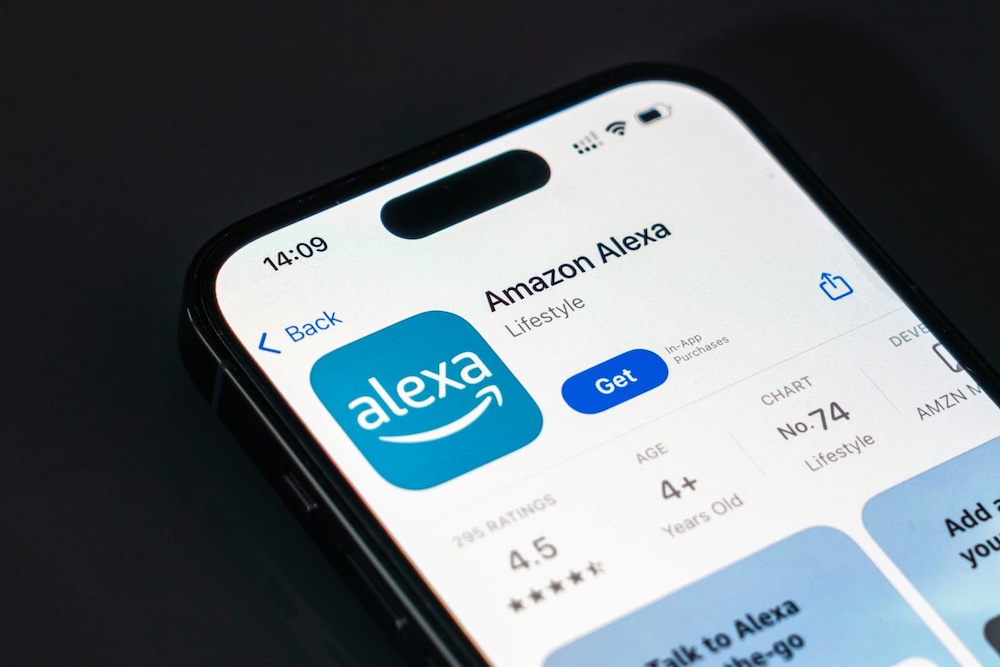
Step 1 – Install Alexa and confirm your account
- Download the Amazon Alexa app and sign in to your account.
- Confirm that your country or region is correct and confirm that you have permitted the app to access your device’s Bluetooth (this can help with the app’s device discovery).
Step 2 – Connect Alexa to Your Wi-Fi
New Echo owners will have step-by-step instructions on configuring their devices provided by the application.
If you’re changing networks and want to know how to setup Alexa with new wifi networks, follow these instructions:
- Access the Alexa application
- Tap Devices
- Select Echo & Alexa → select your device
- Go to Settings
- Select Change or Remove Wi-Fi Network
- Follow the instructions to connect to the new Wi-Fi
- Once completed, move on to the Step 3
If Alexa is on the incorrect network, device discovery often fails.
This makes the step crucial.
Step 3 – Locate & Select Alexa in the Application
To answer your question, “Where is Smart Home in Alexa App?“. It is essentially the Devices area.
- Open the Alexa App → Tab Devices tab (icon that resembles a house with two toggle switches) on the bottom navigation bar
- This is where you can add smart devices, create device groups, and manage your smart home features
Step 4 – Add your first Smart Devices (bulbs, plugs, etc.)
This is the core of how to set up Smart Home with Alexa.
- In the Alexa app → Devices
- Click the “+” icon
- Click add Device
- Select the device type such as light, plug, or switch, and follow the on-screen instructions.
Thermostats are one of the highest-impact Alexa-compatible devices you can connect.
See our best smart thermostat picks for a full breakdown of which models work best in Alexa homes.
Note: When setting up devices, many brands ask you to enable a skill or link accounts. You will have to sign into the brand’s account. If you don’t do this, Alexa will not be able to control the device.
Step 5 – Setting up Smart Lights with Alexa (Recommended Workflow)
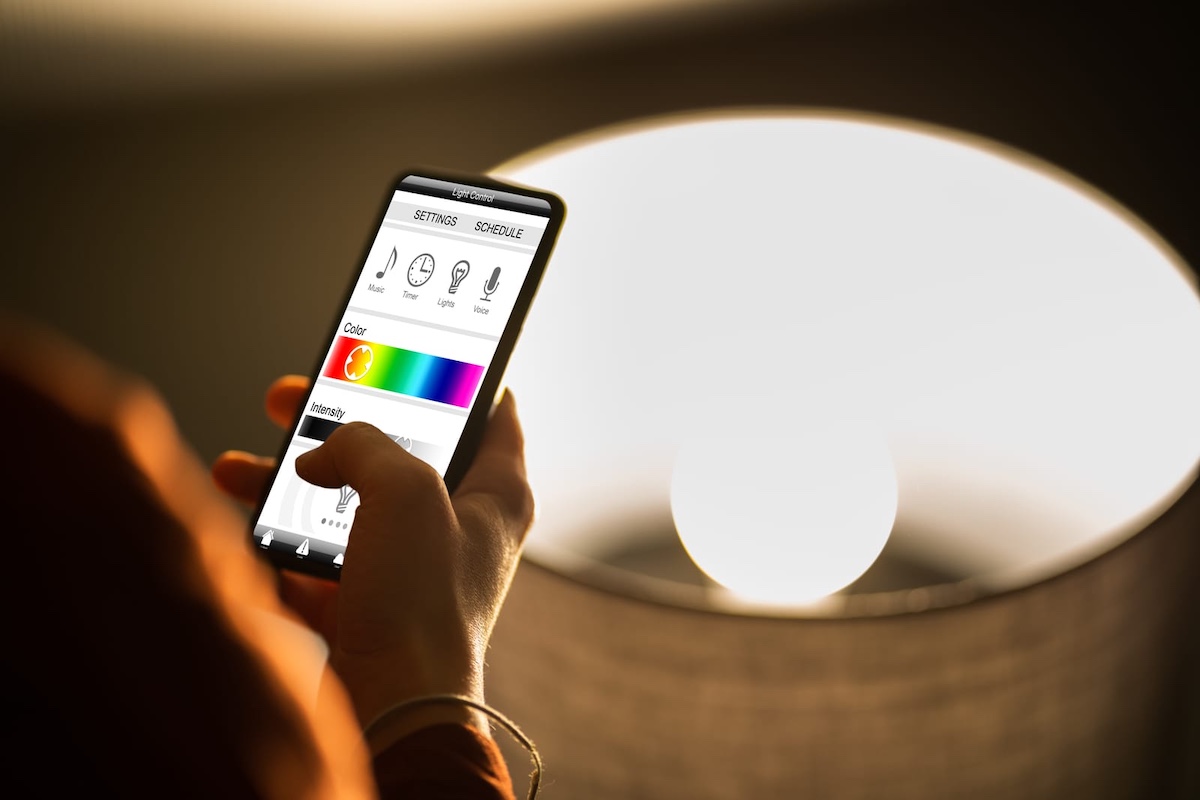
Learning how to setup smart light with Alexa is the perfect training ground.
- Open the Alexa app
- Go to Devices
- Click on the “+” sign → Add Device
- Select Light and choose the brand
- Complete linking and discovery steps
Quick optimization: You can optimize the setup by naming the lights something people can say, such as “living room lamp,” “kitchen ceiling,” or “hallway light.” Don’t name lights things that are too similar like “light 1.”
Step 6 – Organizing Devices into Groups
Grouping devices together makes controlling devices with your voice more intuitive (e.g. “turn off the bedroom lights”) and allows for more advanced automation.
- In the Alexa app → Devices
- Click on the “+” sign → Add Group
- Select Create a room or device group and choose the devices to add to the group
- Test it
This is the best way to set up a smart home with Alexa because it keeps things organized and allows for more devices to be added later on without creating a mess.
Step 7 – (Optional) Add routines for automation
When devices are set and grouped, you can create routines.
- In the Alexa app → More
- Select Routines
- Tap “+” sign to create a new routine
- Tap Rename and give your routine a name
- Add Action: Select Smart Home → Living Room Lights → Power On
- Tap Save
Important: only do it once devices and groups are set
Why This Works
Alexa smart home control is basically three layers:
- Connectivity layer (Wi-Fi and accounts)
- Device layer (Add Device / Skills / discovery)
- Organizational layer (Groups and Rooms) for voice control
Setting it up in this order prevents ghost devices, naming problems, discovery issues, and it keeps your automations reliable.
For larger setups, using a dedicated hub (Zigbee/Matter) can improve reliability and reduce Wi-Fi congestion, which is why choosing the best hub for home automation can be a smart foundation for an Alexa-based system.
Not sure which protocol to pair with your hub? Our Zigbee vs Z-Wave vs Matter comparison walks through which one fits which type of home.
Common Mistakes to Avoid
- Wrong Wi-Fi band/network: When setting up, your phone, Echo, and other smart devices need to be on the same network.
If you’ve changed routers, do the how to setup alexa with new wifi steps first. - Using 5GHz Wi-Fi for Plugs: Most smart home devices (IoT) only communicate on the 2.4GHz frequency.
If you try to pair them to your router’s 5GHz band, they will fail to connect.
Ensure your phone is on the 2.4GHz network during the initial setup. - Not using the brand app when required: Some devices need to be set up in their own apps first before Alexa being able to discover them.
- Poor naming: “Light” and “Light 2” becomes impossible at scale.
Use names that describe the room and purpose. - Not using Groups: Without rooms, you control each device one at a time and make routines fragile.
- Onboarding too many devices at once: Onboard a couple devices at a time, then make sure control works and continue.
- Turning Off Physical Switches: If you turn off the physical wall switch, the smart bulb loses power and becomes “Unresponsive.”
You must leave the wall switch ON and use voice or the app to toggle the light.
Before you buy your first bulb, our best smart bulbs guide walks through which models handle this wall-switch problem best and which ones need a hub to work reliably. - Ignoring Firmware Updates: If a device is acting buggy, check the manufacturer’s app.
Outdated firmware is one of the major cause of connection drops.
Safety & Maintenance Tips
- Firmware update: make sure to periodically update Echo devices and smart device firmware (many fixes are often silent).
- Smart plugs + heaters: Avoid using smart plugs with high power space heaters unless the plug is rated for that.
- Wi-Fi hygiene: Update your router firmware and maintain strong passwords.
- Secure Your Network: Put your smart devices on a “Guest Network” if your router supports it.
This isolates cheap smart bulbs from your personal laptop and banking data.
Learn what end-to-end encryption is for major security measures. - Device audits: every few months, remove devices you no longer own and rename devices that are unclear.
Variations and Alternatives
- Matter devices (if supported): Matter (new standard that allows devices to work with Apple, Google, and Alexa simultaneously) supported devices can reduce “skill chaos” and simplify onboarding across ecosystems.
- Switching to Google Home instead: If you haven’t fully committed to Alexa yet, see our Alexa vs Google Home comparison to check whether Google’s ecosystem might fit your setup better before you invest further.
- Zigbee with an Echo hub model: Some Echo devices have Zigbee functionality, allowing you to connect compatible devices directly (varies by Echo model).
- Home Assistant advanced route: More technical, but if you want local control and more extensive automation, there’s the option of Home Assistant + Alexa integration.
- No voice control: You can still use the Alexa app for device control and schedule routines; there’s no need to use voice.
- The “Hub-Based” Approach (Philips Hue / Lutron): Instead of connecting bulbs directly to Wi-Fi, you use a dedicated bridge (like the Hue Bridge).
- Pros: Extremely reliable; doesn’t clog your Wi-Fi; works 100% locally.
- Cons: Higher upfront cost.
- Setup: You plug the Bridge into your router via Ethernet, then link the Bridge to Alexa via a Skill.
- Smart Home Security with Alexa (Doorbells & Cameras): Alexa can also be used as the control center for a smart home security setup, including video doorbells, cameras, and motion-activated lights.
If you want to avoid recurring fees, we reviewed the best video doorbells without subscription.
Frequently Asked Questions (FAQs)
Smart home management in the Alexa app is primarily in Devices (the bottom navigation).
That’s where you add devices and groups (rooms) and control your linked smart devices.
- Open Alexa app
- Click Devices
- Click Echo & Alexa
- Select your device
- Click Device Settings
- Click Change or remove a Wi-Fi network
- Follow prompts to connect to the new network.
- Open Alexa app
- Click Devices
- Click the “+” button
- Select Add Device
- Choose Light
- Select your brand
- Complete the linking and discovery steps.
To prevent setup loops, keep things organized, and maintain a clean scaling process.
Do the following in order:
1. Place the Echo device on the Wi-Fi
2. Add a singular device category (e.g., lights)
3. Name your devices in a way that’s easy to understand
4. Create room Groups
5. Set up routines
Double check you are connected to the correct WiFi (especially if you changed router), then add the devices again from Devices → “+” → Add Device.
Lastly, confirm if your device has a required brand Skill or if an account needs to be linked to setup.
Not always.
Many devices can be managed within the Alexa app, but having an Echo device makes the setup more seamless and voice control is a nice feature.
For a complete overview, visit out Smart Home Automation page.